 mascofast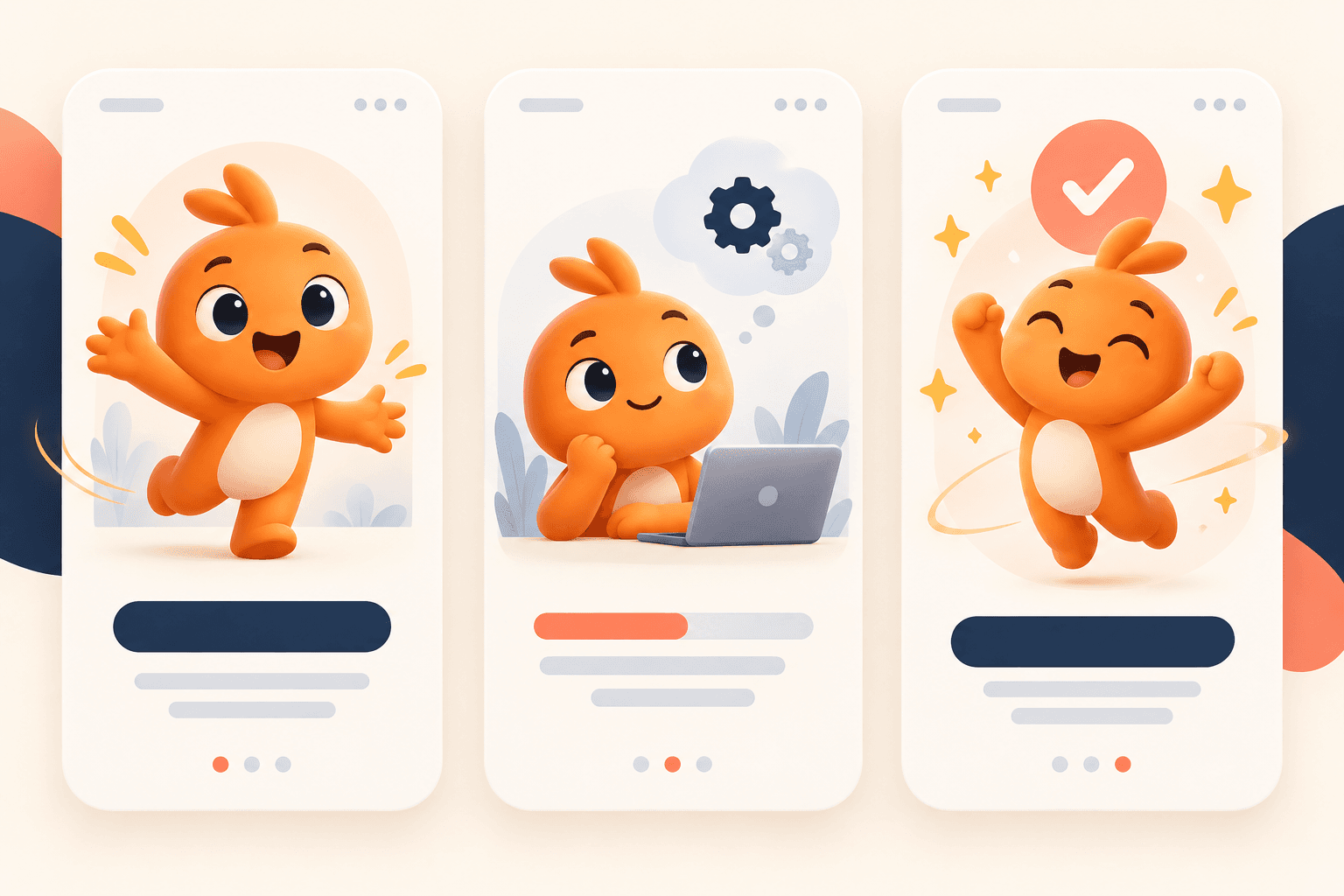
An animated mascot works best in an app when it has a clear job. It can orient a new user, acknowledge a completed action, make a waiting state feel intentional, or give an empty screen a recognizable voice. It should not carry information that the interface fails to explain in text.
The practical workflow is simple: define the product moment, choose the least motion that communicates it, create a small reusable state set, export a static fallback, and test the result at the size and speed your app actually uses.
Use an animated mascot to support a specific product state, not as decoration. Start with one character and a small set of purposeful motions, keep loops brief and easy to stop, respect reduced-motion preferences, and make every important message understandable without animation.
1. Start with the product moment
The first question is not “What should the mascot do?” It is “What does the user need to understand or feel at this moment?”
Write the moment as a small state card:
| Product moment | User needs to understand | Useful mascot role | Better fallback |
|---|---|---|---|
| First run | Where to begin | Welcome or point toward the first action | Static pose beside the instruction |
| Loading | The request is still in progress | Calm idle or thinking loop | Progress text and a cancel path |
| Success | The action completed | Brief celebration | Success label and next action |
| Empty state | Why nothing is shown yet | Invite or guide | Explanation and primary button |
| Error | What went wrong and what to do | Concerned or questioning pose | Error message and retry action |
These are design recommendations, not evidence that a mascot improves activation, retention, or conversion. Measure the product behavior separately if you decide to test one.
A mascot is a poor choice when the user needs dense information, a precise control, or an immediate decision. In those cases, readable copy and familiar interface patterns should do the work first.
2. Choose motion that has one job
A useful animation can usually be described with one verb:
- welcome
- point
- wait
- celebrate
- reassure
- explain
- recover
If a loop needs several sentences to explain what it means, it may be doing too much. Keep the first version small. A wave, blink, nod, or gentle bounce is easier to review than a complex scene with a camera move, multiple props, and changing expressions.
Apple’s Human Interface Guidelines describe motion as a way to convey status, feedback, and instruction. They also recommend purposeful motion, optional experiences, brief and precise feedback, and avoiding interactions that make people wait for an animation to finish. (Apple Human Interface Guidelines: Motion)
A useful motion brief
Label this as an illustrative template, not a required format:
Destination: app success state
Job: acknowledge completion, then leave attention on the next action
Motion: one small celebratory gesture and a short return to neutral
Length: brief, loopable, and easy to interrupt
Composition: centered character, no camera movement, no extra props
Text: none inside the animation
Fallback: static success pose with the same surrounding message
The brief protects the character from drifting into a different design. It also gives a developer something concrete to review before the asset is integrated.
3. Build a small state system
Do not create a different character for every screen. Begin with a neutral reference and a short list of states that map to real product events.
A practical first set is:
- Idle: neutral pose for places where the character is present but not communicating a new event.
- Welcome: a gesture that introduces the first action without delaying it.
- Thinking: a calm waiting state for work that is genuinely in progress.
- Success: a short reaction after a completed task.
- Concerned: a restrained reaction paired with an error or recovery message.
- Pointing: a directional pose used only when the surrounding layout makes the target clear.
The state names are an implementation aid. Your application still owns the meaning. A “thinking” loop should never imply that work is progressing if the request has failed or stalled.
Keep a simple state table next to the design files:
| State | Trigger | Text still required | Stop condition |
|---|---|---|---|
| Thinking | Request started | What is happening, when useful | Request finished, failed, or cancelled |
| Success | Request completed | What completed and what comes next | After the acknowledgment |
| Concerned | Recoverable error | Problem and recovery action | Retry, dismissal, or navigation |
This separation makes the mascot easier to remove, replace, or render as a static image without changing product logic.
4. Make the character readable at app size
An animated mascot can look clear in an asset viewer and turn into visual noise inside a compact card. Check the character at its smallest intended size, on light and dark surfaces if both exist, and beside the actual copy and controls.
Prioritize:
- a recognizable silhouette;
- a face and gesture that survive downscaling;
- enough contrast against the background;
- a stable palette across states;
- no important information hidden in tiny details;
- a frame that leaves room for the UI message;
- a static image that still makes sense when motion is disabled.
For a product mascot, consistency usually matters more than complexity. A repeated character with a small vocabulary of useful poses can be easier to recognize than a set of elaborate but unrelated illustrations.
MascoFast is one optional route for creating a cartoon mascot and short transparent-background animation loops when a team needs a consistent character but does not have an illustrator or animator. Review the current workflow and exported asset in context before integrating it. See how MascoFast works and browse mascot styles.
5. Respect reduced motion and keep meaning in text
Animation should reinforce a message, not become the message. Apple advises making motion optional and avoiding animation as the only way to communicate important information. The W3C guidance for animation from interactions explains that non-essential motion should be disableable and points to user motion preferences as one way to reduce risk. (W3C: Animation from Interactions)
At minimum:
- keep the status, error, success, or instruction in HTML text;
- provide a still image or no-animation state;
- honor
prefers-reduced-motionwhere your platform exposes it; - do not require users to watch a loop before they can continue;
- avoid repeated motion beside a primary reading or input area;
- give users a way to cancel or skip non-essential sequences.
A reduced-motion version does not need to be a frozen video frame. It can be a static pose, a simpler opacity change, or no character at all. Choose the option that preserves the product meaning with the least distraction.
6. Test the exported asset, not only the concept
Before shipping, test the actual file in the actual surface. A transparent asset may reveal an unwanted edge, an opaque background, a crop problem, or a frame that becomes unreadable when the container is smaller than the preview.
Use this checklist:
- Does the asset have the intended background behavior?
- Does the first frame look acceptable before the loop begins?
- Does the last frame return cleanly to the first frame?
- Does the character remain recognizable throughout the motion?
- Does the loop compete with the primary action?
- Does it load and play acceptably on a slower device or connection?
- Is the static fallback available and visually related?
- Can the user continue without waiting for it?
- Does the reduced-motion state preserve the same product message?
- Is the asset used in a place where the user benefits from it?
MascoFast’s animated asset inspector can be useful for checking an exported animation before it reaches the UI. That is a file review step, not a substitute for testing the integrated screen.
7. Measure the product job separately
Do not treat a more memorable character or a more polished loop as proof of a business result. If the animation is intended to help a user complete onboarding, define the completion event and compare the relevant experience carefully. If it is intended to clarify a loading state, inspect cancellation, abandonment, error recovery, and perceived clarity.
A small evaluation plan might track:
| Intended job | Product signal to inspect | Qualitative question |
|---|---|---|
| Orient a new user | First meaningful action | Did the user know where to begin? |
| Explain waiting | Cancellation or abandonment | Did the screen make the state understandable? |
| Acknowledge success | Next-step completion | Did the user know what happened next? |
| Support recovery | Retry completion | Did the user understand the recovery path? |
These are measurement suggestions. They are not benchmarks and should not be presented as expected outcomes.
Common mistakes to avoid
Using the mascot as a status label
A happy animation cannot replace “Upload complete.” Put the state in text, then let the character reinforce it.
Looping beside a focused task
Constant movement near a form or reading area can compete with the job. Reduce the intensity, trigger it once, or remove it.
Designing only the happy path
A mascot system needs neutral, waiting, success, and recovery states. Otherwise teams add random reactions later and character consistency breaks.
Making the animation impossible to skip
The user came to finish a task, not to watch a required brand sequence. Keep the motion interruptible and the action available.
Treating output format as an afterthought
Choose the destination before generating a large asset library. A web or app surface may need different constraints from a social post or a store screenshot. Test the chosen export where it will be used.
Final workflow
- Name the user moment and the product event.
- Write the message that must remain clear without motion.
- Choose one animation verb and the least motion that supports it.
- Create a neutral reference and a small state set.
- Review the character at the real UI size.
- Export a static fallback and a reduced-motion version.
- Test the actual asset in the integrated screen.
- Measure the intended product job separately from the animation itself.
An animated mascot earns its place when it helps a user understand what is happening, what to do next, or how the product is responding. If it does none of those things, a static illustration or no illustration is usually the clearer choice.
Keep exploring
Turn the idea into a usable mascot system, then check the exported animation before it reaches your product.